
When I first launched SchemaExpertify, I was obsessed with checking my Google Search Console (GSC) every hour. One morning, I saw a spike in red bars under the indexing tab labeled “Not Found (404).” My heart sank. I thought I had broken my site.
If you are seeing this same error, don’t panic. After years of managing SEO for clients and my own tools, I’ve realized that 404 errors are just a part of a website’s life cycle. However, ignoring them is a recipe for SEO disaster. In this guide, I will share my personal experience and a 100% working strategy on how to fix 404 Error in Google Search Console effectively.
What Exactly is a 404 Error and Why Does it Happen?
In simple technical terms, a 404 Error is an HTTP status code that means the server could not find the requested page. When Google’s “Googlebot” tries to crawl a specific URL on your site and finds nothing there, it flags a 404 Error in Google Search Console.
Common Reasons for 404 Errors:
- Deleted Content: You removed a blog post or a page because it was outdated, but forgot that other sites are still pointing to it.
- URL Structure Changes: You changed your permalink without telling Google where the old one went, causing a massive 404 Error in Google Search Console.
- Typos in Linking: Someone else linked to your site but made a spelling mistake in the URL.
- Migration Issues: If you moved from one hosting provider to another or changed your domain, broken links often follow, leading to a spike in your 404 Error in Google Search Console report.

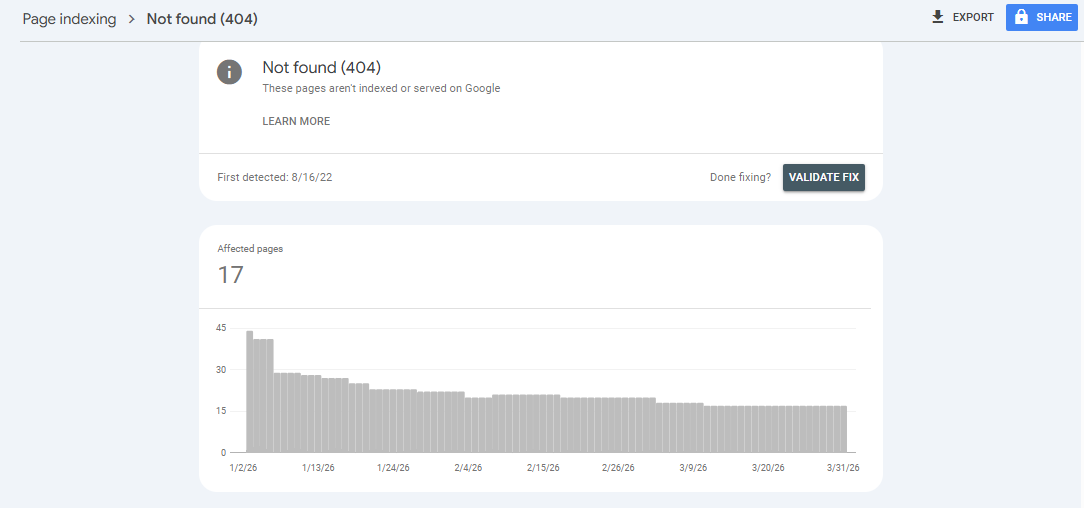
How to Identify 404 Errors in Google Search Console
Before we fix the problem, we need to find the leaks. Google Search Console is the best tool for this because it shows you exactly what the bot sees.
Step-by-Step Discovery:
- Login to GSC: Go to your dashboard.
- Navigate to Indexing: On the left-hand sidebar, click on “Pages.”
- Analyze the Table: Scroll down to the section titled Why pages aren’t indexed.
- Click on “Not Found (404)”: This will open a detailed report. This is where you will see the list of every 404 Error in Google Search Console that is currently affecting your site.
Pro Tip: Pay attention to the Trend column. If the number of 404s is suddenly skyrocketing, it usually means you have a site-wide technical issue. Understanding how to fix 404 Error in Google Search Console quickly is vital here to prevent ranking drops.
How to Fix 404 Error in Google Search Console (The 3-Step Strategy)
I have used this exact framework to clean up SchemaExpertify and my clients’ sites. Here is the most efficient way to handle these errors.
Step 1: The Power of 301 Redirects (The Best Method)
A 301 redirect is a permanent move notice. It tells Google: Hey, this page doesn’t live here anymore; please go to this new page instead. This is the number one way when people ask how to fix 404 Error in Google Search Console.
- Why use it? It passes the link juice (SEO authority) from the old URL to the new one.
- How to do it: If you use WordPress, I highly recommend the Rank Math SEO plugin. It makes resolving a 404 Error in Google Search Console incredibly simple.
- Source URL: Put the broken 404 link here.
- Target URL: Put a relevant, live URL here.
Step 2: Restoring Deleted Content
Sometimes, the best answer to how to fix 404 Error in Google Search Console is to simply bring the page back. If you deleted a post by mistake, restore it from your trash. Once the URL is live again, the 404 Error in Google Search Console will naturally disappear during the next crawl.
Step 3: The Validate Fix Ritual
Many people fix the link but forget to tell Google. To properly complete the process of how to fix 404 Error in Google Search Console:
- Go back to the 404 report in GSC.
- Click the Validate Fix button.
- This triggers a higher-priority crawl. As Google finds the 301 redirects, your 404 Error in Google Search Console count will start disappearing.
The Hidden Connection AdSense Approval and 404 Errors
I get this question a lot: Sajad, why is my AdSense application getting rejected? The answer is often hidden in your 404 Error in Google Search Console data. Google AdSense wants high-quality websites. If a reviewer clicks around and hits multiple 404 pages, they view your site as Low Value Content.
To get approved, you must master how to fix 404 Error in Google Search Console. A clean report shows Google that you are a responsible webmaster who cares about the visitor’s journey. If you have a high 404 Error in Google Search Console rate, your chances of approval are slim.
Best Practices to Avoid 404 Errors in the Future
Preventing a 404 Error in Google Search Console is much easier than fixing one.
- Plan your Permalinks: Avoid changing slugs once a post is indexed.
- Audit your Links: Use tools like Broken Link Checker to find errors before they appear as a 404 Error in Google Search Console.
- Use Schema Markup: While it doesn’t fix a 404, having valid JSON-LD Schema helps Google understand your site structure, which is crucial when learning how to fix 404 Error in Google Search Console and re-indexing pages.

Need Professional SEO Help?
Understanding how to fix 404 Error in Google Search Console can sometimes be overwhelming. If you are struggling with complex site migrations, redirect loops, or persistent 404 Error in Google Search Console issues, I am here to help.
You can hire me directly for custom SEO audits and technical fixes through my official freelance profile: Hire Me on Fiverr – MuhammadBalo877
My Final Verdict
Learning how to fix 404 Error in Google Search Console is a fundamental skill for any 2026 digital marketer. It’s not just about removing red errors; it’s about maintaining the authority and professional look of your website. By following this guide, you ensure that every 404 Error in Google Search Console is handled with a proper 301 redirect.
Still struggling with a specific 404 Error in Google Search Console? Feel free to reach out via my Contact Us page. I personally check every message and would love to help you get your technical SEO back on track.